
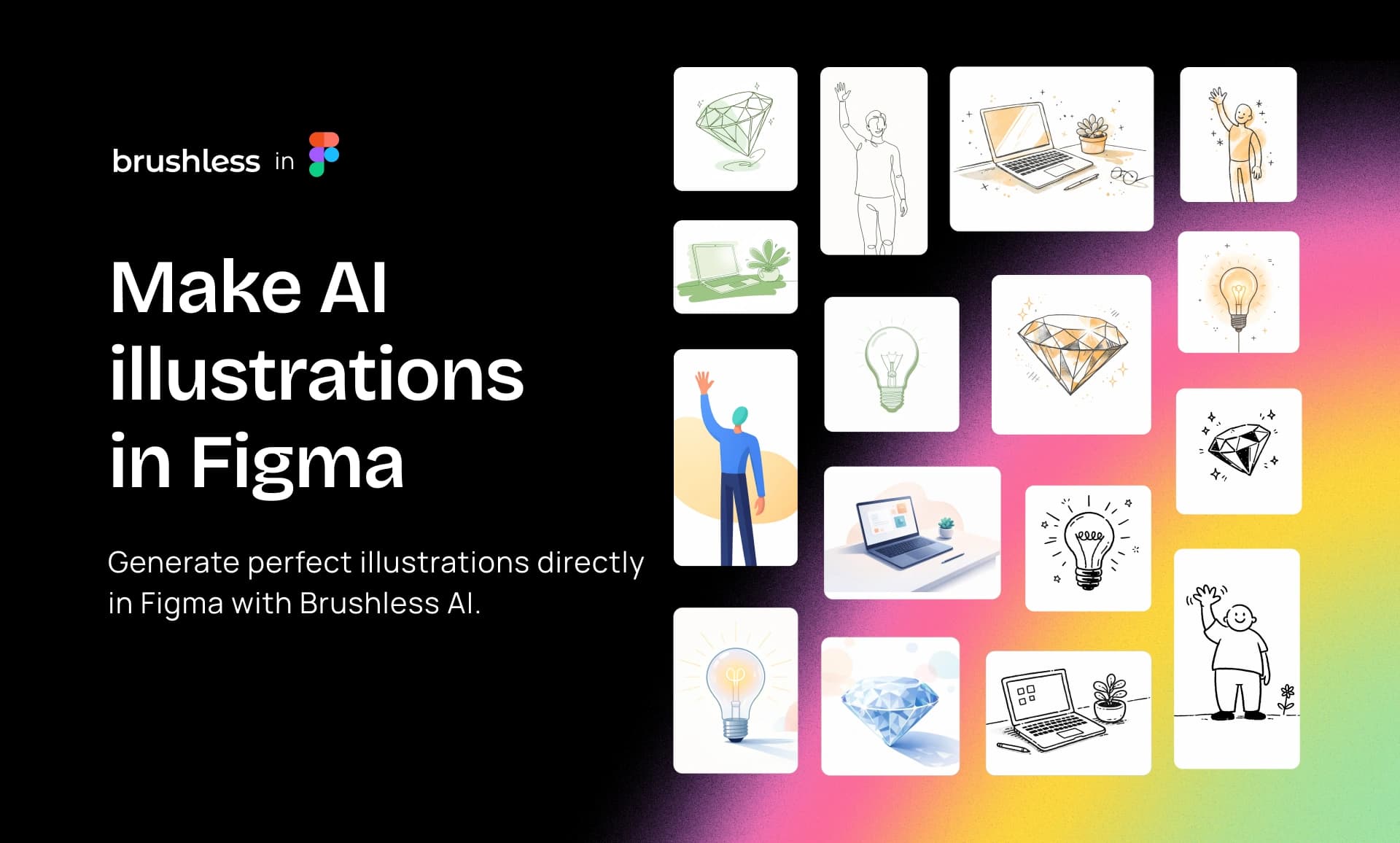
How to Create Consistent, On-Brand Illustrations in Figma with Brushless AI
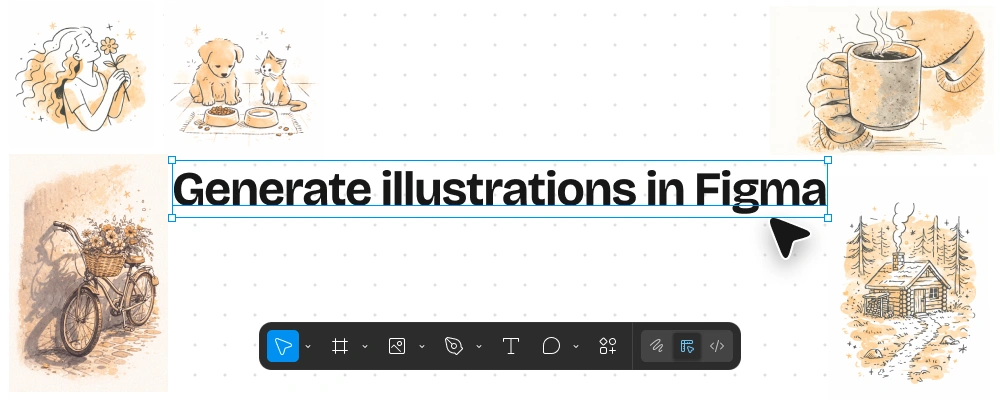
If you have ever tried to add illustrations to a real product UI, you know the pain.
You find one that looks great. Then you need five more. Suddenly nothing matches. Colours drift. Line weight changes. Detail levels jump all over the place. Now your screens look like they came from five different products.
And the worst part is the workflow.
You leave Figma, generate or download something elsewhere, export, re import, resize, tweak colours, repeat. It is slow, messy, and it breaks your focus.
This post shows a practical workflow to create consistent illustration sets in Figma using the Brushless AI plugin, so you can go from blank frames to a cohesive illustration system in minutes, without leaving your canvas.
The problem with inconsistent illustrations
In product design, inconsistency is loud.
When your UI is clean but your illustrations feel mismatched, the whole product looks less polished, even if the layout and typography are solid.
Here is what usually goes wrong:
Style drift across screens
One illustration is flat and geometric, the next is sketchy and textured. Same product, different visual language.
Colour mismatch with your design system
Your UI uses specific HEX codes, but the illustration palette is “close enough” rather than actually aligned.
Detail level and density do not match the UI surface
A hero illustration is overly detailed, while empty states are too minimal. The product feels unbalanced.
Time gets burned on busywork
Searching stock sites, editing SVGs, recolouring, exporting, naming files, keeping versions straight.
For product teams, the impact is real:
- Slower feature shipping because visuals become a blocker
- A weaker sense of brand in the UI because visuals do not feel connected
- Higher design debt because every new screen needs “one more illustration” that has to be hunted down
If you want speed and quality, you need a workflow where consistency is the default.
Meet Brushless AI’s Figma plugin
Brushless AI is a Figma AI illustration plugin that lets you generate consistent, fully customisable illustrations directly inside Figma.
You generate on brand illustration sets in Figma, in a locked style and palette, and place them straight onto your canvas.
- 30+ illustration styles so you can match the vibe of your product instead of forcing your product to match the tool
- Colour palette syncing, including generating a palette from an image and reusing it across a set
- Granular colour control so you can control the dominance of colours and keep visuals intentional
- Multiple asset types including character illustrations, icon sets, logos, infographics, and informative illustrations
- Editable outputs so you can refine without starting over
- Stays inside Figma so you do not bounce between tabs, exporters, and folders
The outcome is simple:
You keep your design momentum, and your visuals stay consistent from screen to screen.
Step by step: From blank frame to consistent illustration set in Figma
Below is a practical walkthrough you can use this week.
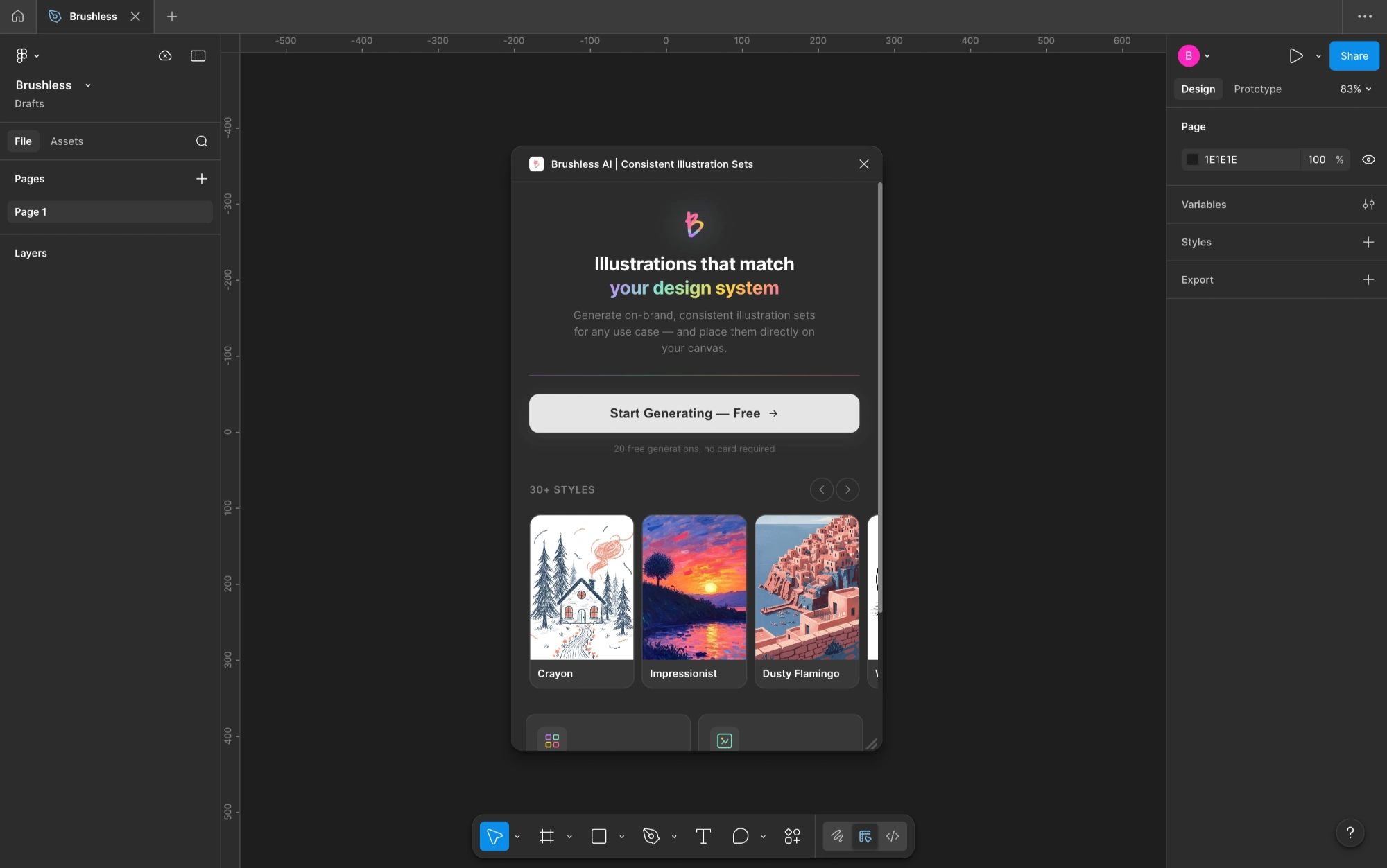
Step 1: Install and open the Brushless AI plugin in Figma
- Open Figma
- Go to Figma Community
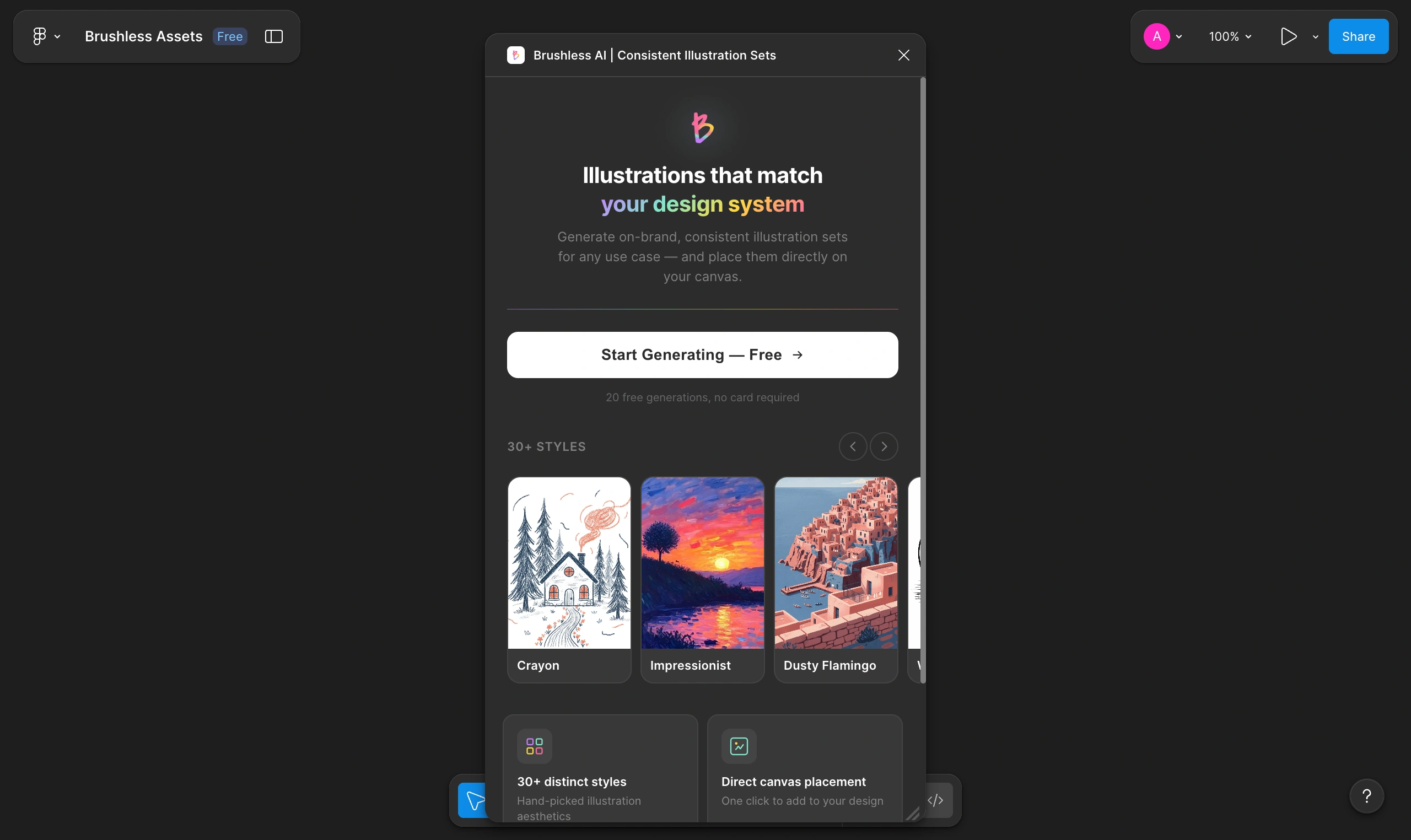
- Search for Brushless AI | Consistent Illustration Sets
- Install
- In your file, open it via Resources or Plugins and run it
Goal of this step: get Brushless running in the same file where you are designing, so the output lands exactly where you need it.
Quick tip: create a page called Illustrations in the same file. That becomes your mini library and keeps your main UI pages clean.
Step 2: Set up your style and colour palette
Consistency comes from locking two things early:
- the illustration style
- the palette rules
Start with whichever is fastest for your current project:
Option A: Use your existing design tokens
- Pick 4 to 6 brand colours you already use in UI
- Choose a dominant colour and 1 to 2 supporting colours
- Keep neutrals consistent with your UI background and surfaces
Option B: Extract a palette from a reference image
- Upload a reference (brand key visual, landing page hero, or campaign image)
- Let Brushless extract a usable palette you can reuse across illustration sets
- Save it as your project palette
Choose the illustration style first, then set the colour palette.
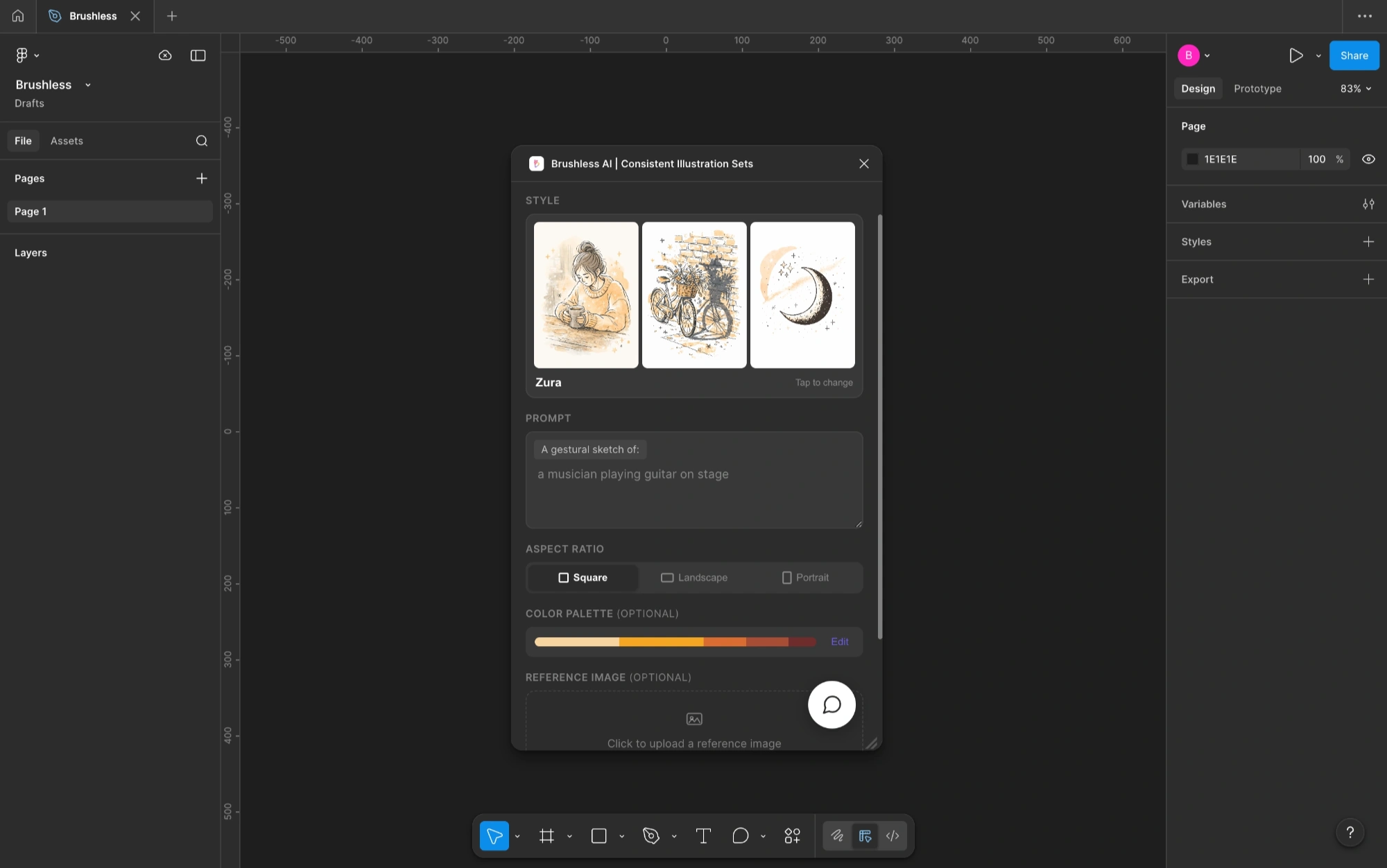
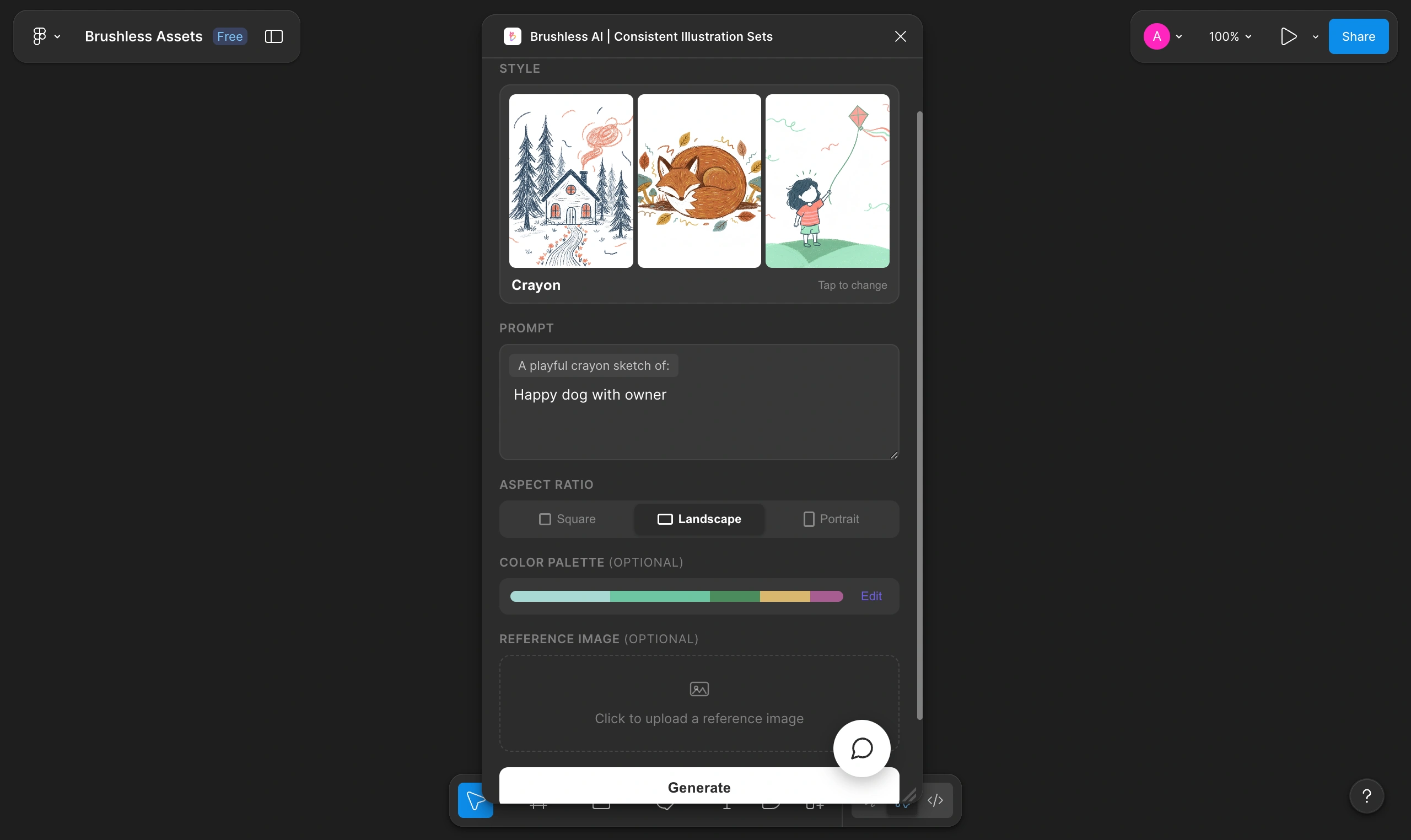
Step 3: Generate your first illustration
You do not need long prompts to get good output.
With Brushless, a simple one liner is often enough because the real consistency comes from the style you pick and the palette you lock in.
For example, if you are designing a pet care or dog walking landing page, here are minimal prompts a product designer can type in 5 to 6 words.
Hero and landing visuals
- “Happy dog with owner”
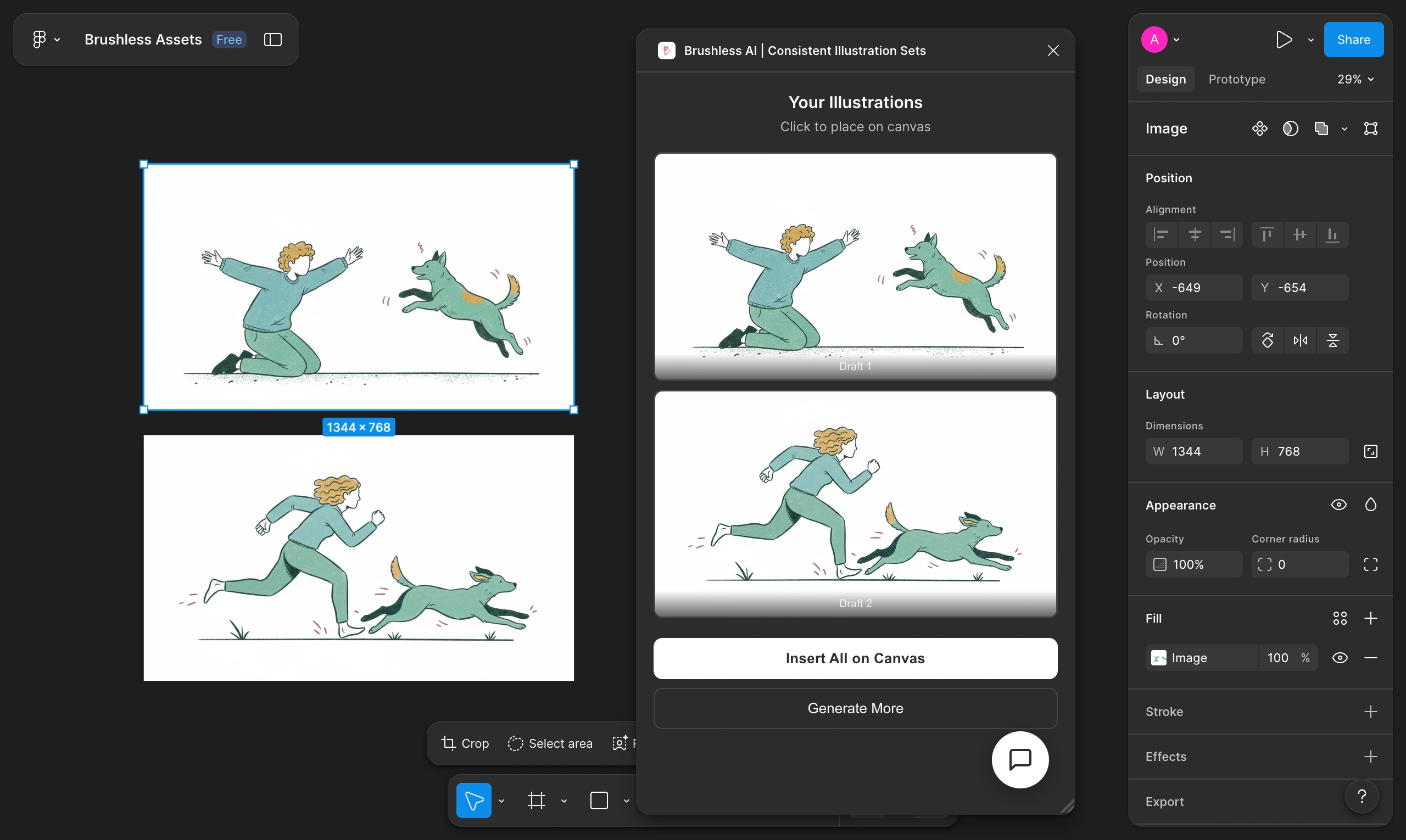
- “Dog walking in the park”
- “Vet checking a puppy”
- “Pet grooming at home”
- “Dog adoption moment”
- “Pet care app on phone”
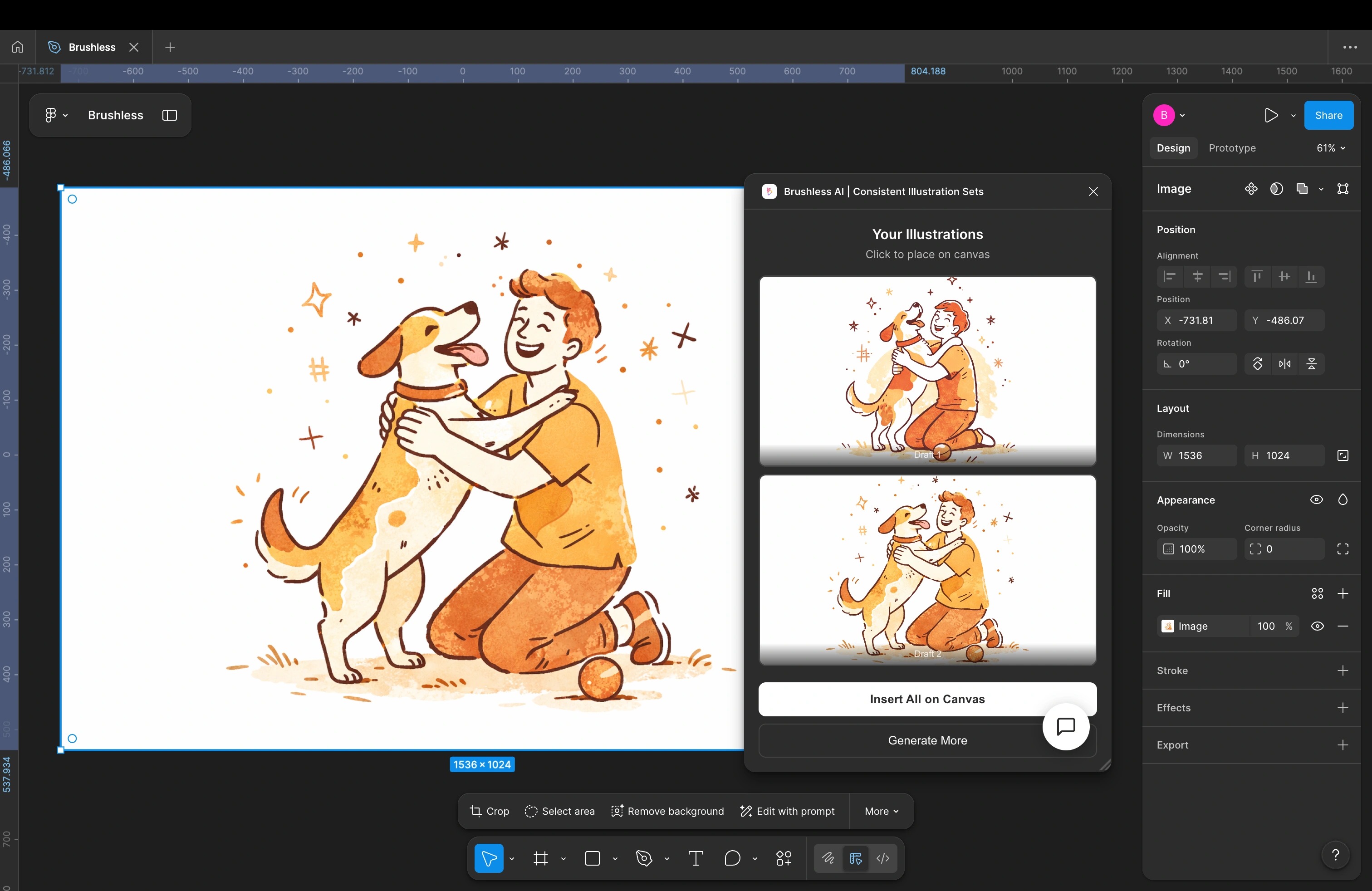
Once you generate an illustration, Brushless gives you two drafts.
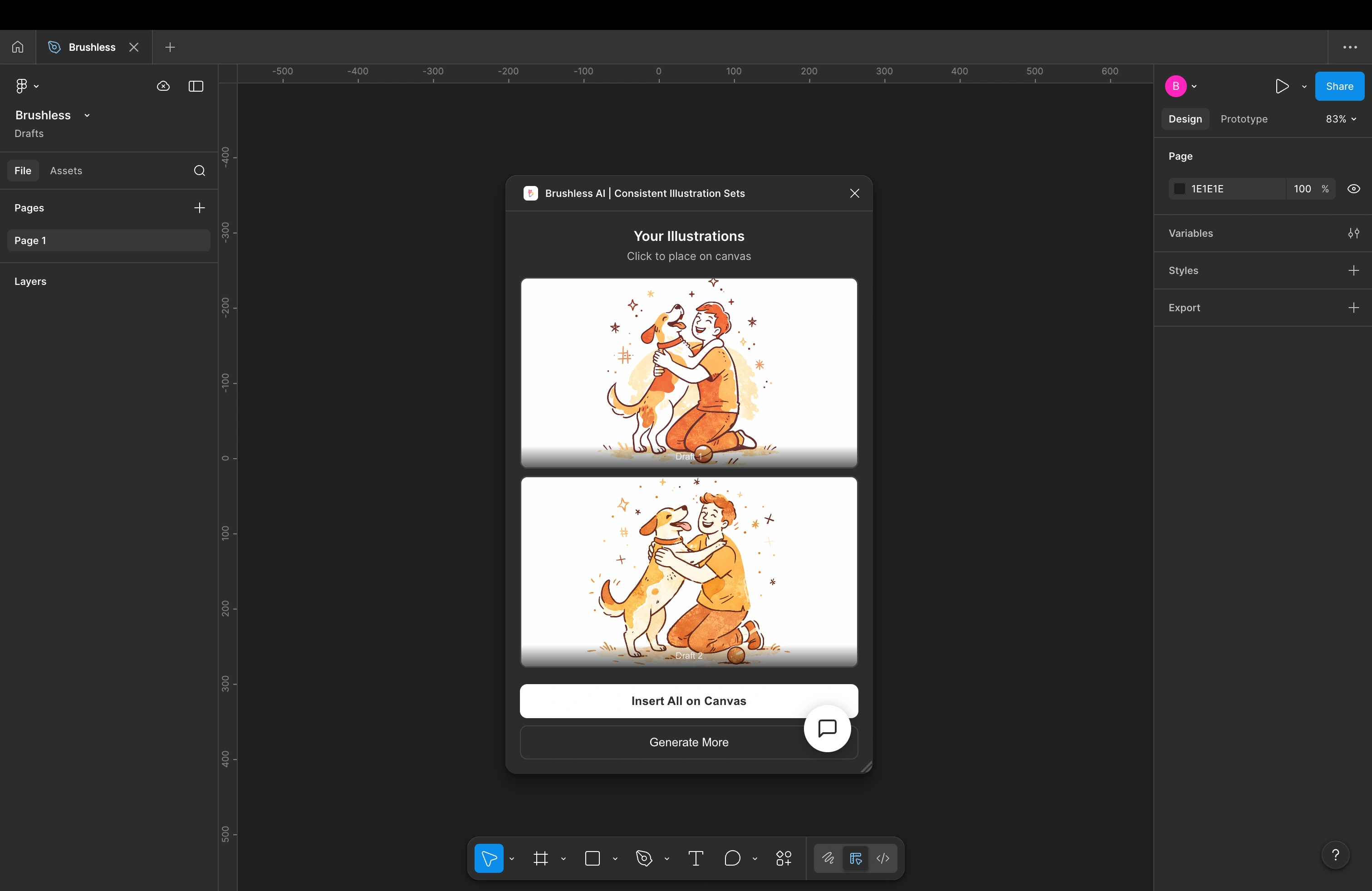
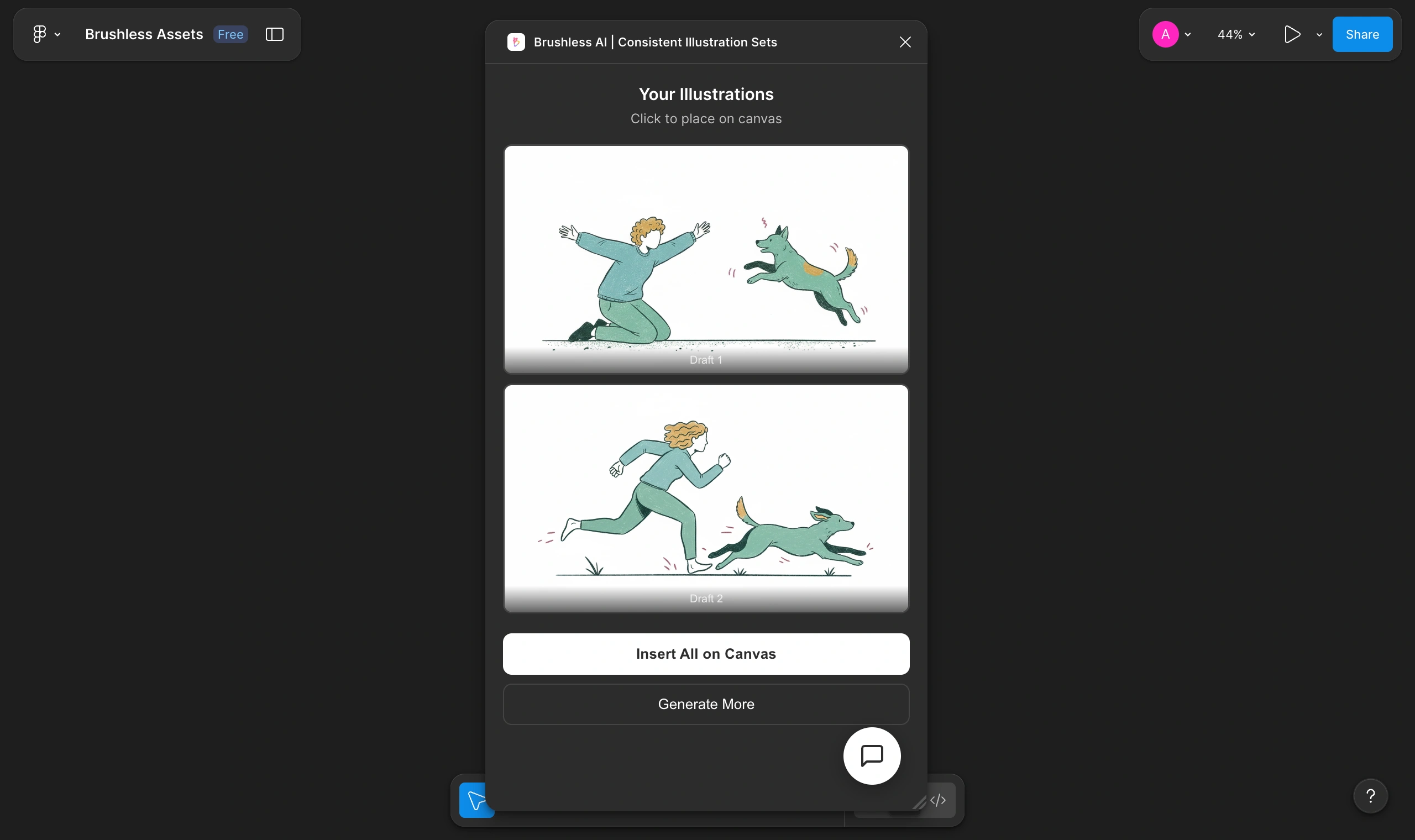
Step 4: Insert drafts directly into your Figma canvas
Once you generate an illustration in the plugin, Brushless gives you two drafts.
Pick the one you like and insert it straight onto your canvas.
Just generate → choose → place.
This is what makes the plugin feel fast for real product work:
- You stay inside your file
- You drop visuals directly into your frames
- You keep moving without breaking your flow
Step 5: Build your set with minimal prompts and intent based requests
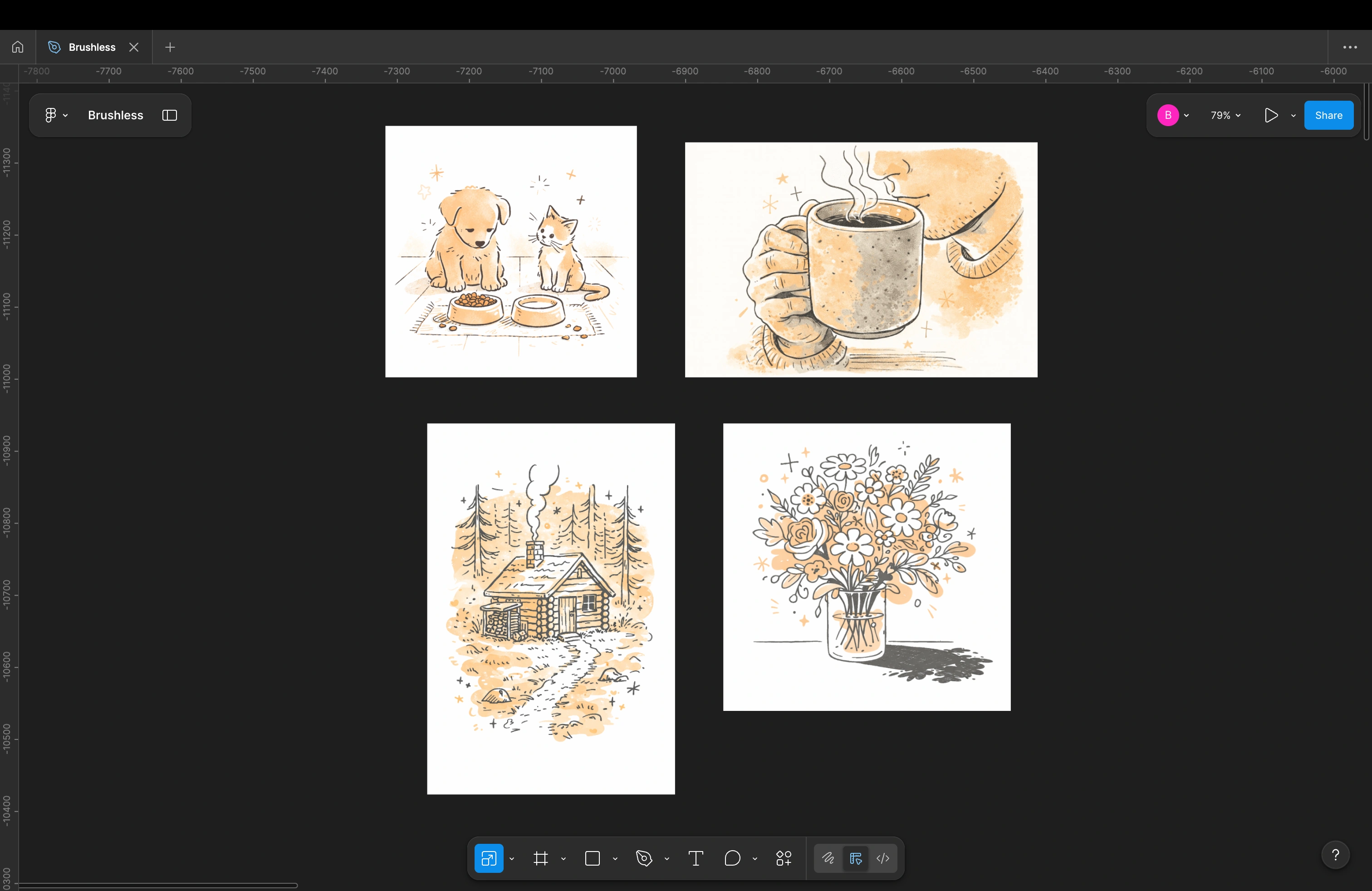
Now that you have your first illustration in place, repeat the same loop to build the full set.
- Use the same style
- Use the same palette
- Keep prompts short
- Insert each chosen draft straight into your frames
Here’s the extra bit that makes this feel effortless.
Brushless has reasoning baked in.
So you do not always need to describe the illustration at all. You can just tell Brushless what you need it for, and it will propose the right visual concept.
Examples you can type (intent based prompts)
- “Illustrations for the payments page of my pet food website”
- “Empty state illustrations for a dog walking app”
- “Hero illustrations for a pet care landing page”
- “Onboarding illustrations for a vet appointment app”
If you want to be more direct, one liners work great too:
- “Happy dog with owner”
- “Vet checking puppy”
- “Dog walking in park”
- “Pet grooming at home”
In a few minutes, you go from one illustration to a full, consistent set across hero sections, feature blocks, and empty states.
Real workflows and use cases
From an outcome based, real world lens, these are the strongest:
1. Consistent in app illustrations for product UI
Why it matters
Replaces random stock art with one coherent illustration system. Your UI feels more premium, and empty states and onboarding ship faster.
Where you will use it
Dashboards, onboarding flows, mobile apps, internal tools.
2. On brand marketing visuals from the same Figma file
Why it matters
Generate hero and supporting visuals in the same workflow as your layouts, so product and marketing stay visually connected.
Where you will use it
Landing pages, launch assets, email headers, blog covers, decks, socials.
3. Reusable illustration and icon systems
Why it matters
Creates long term leverage. One style, one palette, and a scalable system that reduces design debt over time.
Where you will use it
Design system files, multi product suites, white label platforms.
4. A “Brand Illustration System” template your team can reuse
Why it matters
New hires or agencies can duplicate one template file and stay on brand instantly, without reinventing the visual language.
Where you will use it
Icon sheets (24×24, 32×32) saved as components, illustration families componentised and named for reuse.
Best practices for using Brushless AI in Figma
If you want the output to look consistent and on brand, follow these rules.
Lock one style per surface
One style for product UI, one style for marketing. Do not mix styles inside the same flow.
Start from your palette
Use your design HEX code or extract a palette from a brand reference image, then reuse it across every illustration.
Keep prompts short and consistent
Your prompt format should feel like a system.
Example pattern: “Subject + action”
- “Dog walking in park”
- “Vet checking puppy”
- “Pet grooming at home”
Build an illustration library page in your file
Keep final illustrations in one place so you can reuse them across screens like components.
Aim for consistency over perfection
A consistent set that ships is more valuable than one perfect illustration that takes hours to get right.
To get the full experience, try Brushless at brushless.ai
The Figma plugin is built for speed: generate and place illustrations where you are already designing.
But if you want the full Brushless experience, jump into brushless.ai.
That is where you unlock the deeper controls designers use to polish and ship visuals:
Conversational editing with Edit with AI
Start from a draft and refine it with simple instructions like:
- “make it more minimal”
- “reduce background”
- “add more whitespace”
- “match brand colour”
One tap prompt presets
Quick suggested edits you can apply instantly, then fine tune if needed.
Export in high quality formats
- Export as PNG or SVG
- Export with background or without background, depending on where the asset needs to live
- UI screens, landing pages, decks, social posts
If the plugin is your fast lane, brushless.ai is where you fine tune, control details, and export production ready assets.
Try it at brushless.ai to get the full workflow.